Chat with AI (Cmd+L)
Chat (Cmd+L) is your AI pair programmer. Ask questions, explain errors, request code—it's a full conversation. Unlike autocomplete, Chat is perfect for explanations, debugging, and larger tasks.
Opening Chat
Press Cmd+L (Mac) or Ctrl+L (Windows)
The Chat panel opens on the right side.
Type your question or request
Anything from "What does this function do?" to "Create a form component"
Press Enter
Cursor AI responds with an answer, explanation, or code.
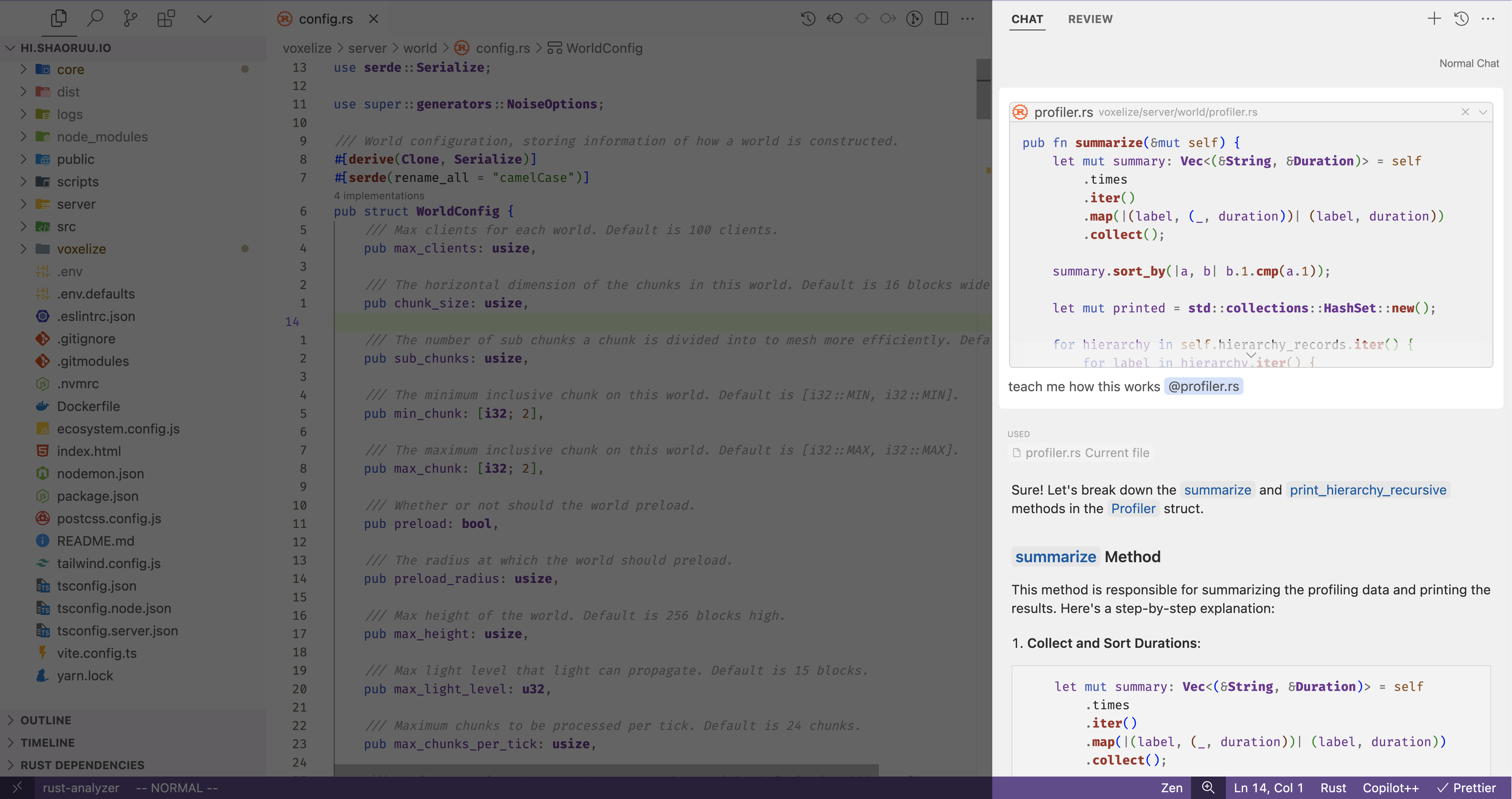
Adding Code Context to Chat
To ask about specific code, highlight it first, then:
Highlight code in your editor
Select the code you want to discuss.
Press Ctrl+L (add to Chat)
On macOS, this is Cmd+L. That code is added to the Chat input.
Type your question
Now ask about that code: "Why does this error occur?" or "How can I optimize this?"
Ask Mode vs Edit Mode
Chat has two modes (toggle at the top of the Chat panel):
- **Ask Mode**: Get suggestions and answers without changing your code
- **Edit Mode**: Let AI modify your code directly (great for refactoring)
Example Questions You Can Ask
- "Explain this JavaScript function in simple terms"
- "Why am I getting this error? [paste error message]"
- "How do I create a React component that does [what you want]?"
- "What's the best way to style this with Tailwind?"
- "Refactor this code to use async/await"
Be specific! "Create a button" is vague. "Create a React button component with a blue background, white text, and a hover effect that scales up" gives Cursor much better direction.
Chat Fluency Achieved!
- You can open Chat and ask questions
- You can add code context to your questions
- You understand Ask vs Edit mode
- You're comfortable with the Chat workflow
Great! Chat is your AI partner for in-depth help. Next, let's learn Cmd+K for quick inline edits.