Navigate the Interface
Cursor looks and feels like VS Code—because it's built on it. But it adds AI tools you won't find anywhere else. Let's explore where everything is.
The Main Layout
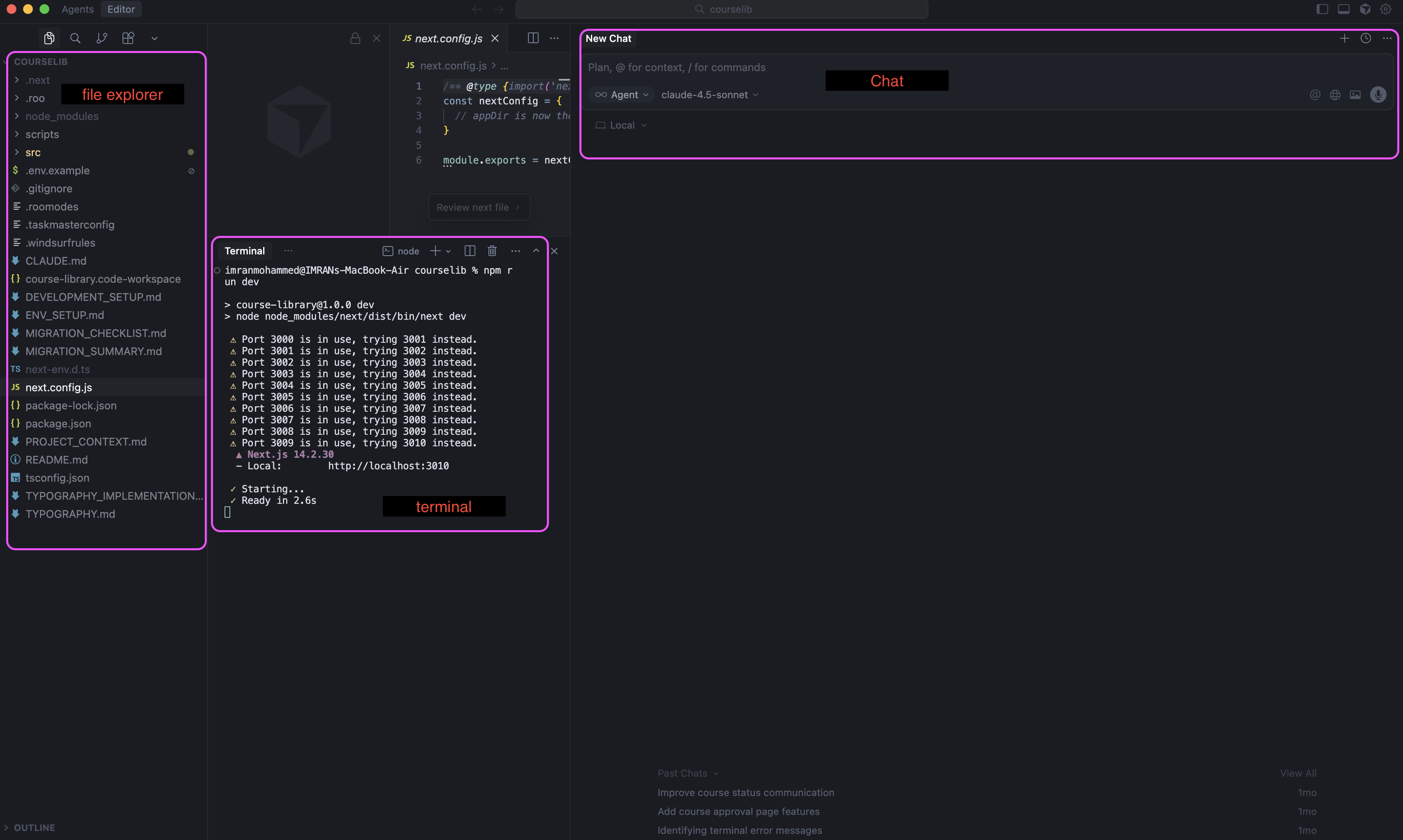
When you open Cursor, you'll see the familiar VS Code layout. The interface has these main areas:
- **Left Sidebar**: File explorer, search, Git, and extensions
- **Main Editor**: Where your code lives. Open multiple files in tabs.
- **Right Side Panels**: Chat panel (AI assistant) and other tools
- **Bottom Panel**: Terminal, problems, output, and debug info
AI-Specific Elements
Cursor adds special UI elements for AI features. Here's what's unique:
The Chat Panel (Right Side)
This is your AI assistant. Open it with Cmd+L (Mac) or Ctrl+L (Windows). Ask questions, explain errors, or get code suggestions. You can close and reopen it anytime.
The Prompt Bars
Three quick ways to invoke AI:
- **Cmd+L (Chat)**: Ask AI a question in the Chat panel
- **Cmd+K (Inline Edit)**: Highlight code and press Cmd+K to edit it with natural language
- **Tab (Autocomplete)**: Start typing and the AI suggests the next line(s)
Composer (Cmd+I)
This is your multi-file AI editor. It can create or modify multiple files at once. Opens as a floating window or full-screen mode. Perfect for generating entire components or features.
Essential Keyboard Shortcuts
Memorizing these will supercharge your workflow:
- **Cmd+L** (Mac) / **Ctrl+L** (Windows): Open Chat panel
- **Cmd+K** / **Ctrl+K**: Inline edit with AI (highlight code first)
- **Cmd+I** / **Ctrl+I**: Open Composer (floating)
- **Cmd+Shift+I** / **Ctrl+Shift+I**: Open Composer (full-screen)
- **Cmd+Enter** / **Ctrl+Enter**: Give AI your full codebase as context
- **Cmd+P** / **Ctrl+P**: Quick file search and navigation
- **Cmd+/** / **Ctrl+**: Toggle comment on selected code
- **Tab**: Accept autocomplete suggestion
- **Escape**: Reject autocomplete or close panels
File Explorer (Left Sidebar)
This works just like VS Code. Browse your project files, create folders and files, and drag to organize. The top button opens a folder or creates a new project.
Terminal (Bottom)
Click the Terminal tab at the bottom to open the command line. You can run commands, start a dev server, or commit to Git. Press Ctrl+K (or Cmd+K) in the terminal to ask AI to generate a command.
Opening a Project
To start working:
File menu
Click File → Open Folder
Choose your project
Navigate to where your code lives on your computer
Click Open
Cursor loads your project and shows all files in the left sidebar
You can also drag a folder onto the Cursor icon in your dock (Mac) or taskbar (Windows) to open it instantly.
Interface Mastery!
- You understand the main layout and panels
- You know where the AI tools are (Chat, Composer, prompts)
- You've learned the essential keyboard shortcuts
- You can open projects and navigate files
You're now comfortable navigating Cursor. Next, we'll learn how to edit code with AI assistance.